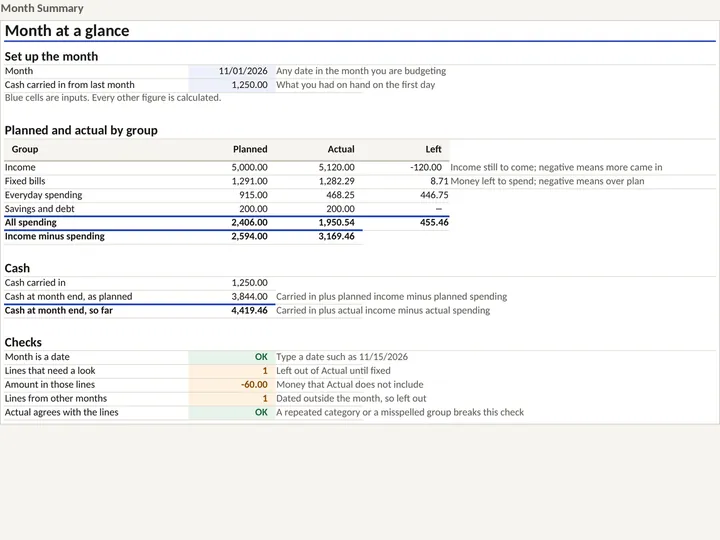
Monthly Budget Template
Plan monthly income and spending, compare actual results and monitor your remaining budget.
Accepts exported transaction data
Download .xlsx22 KB
Plan your annual budget and compare monthly income and expenses with actual results.
Download complete. Next step: Convert a statement PDF to data you can use in this template
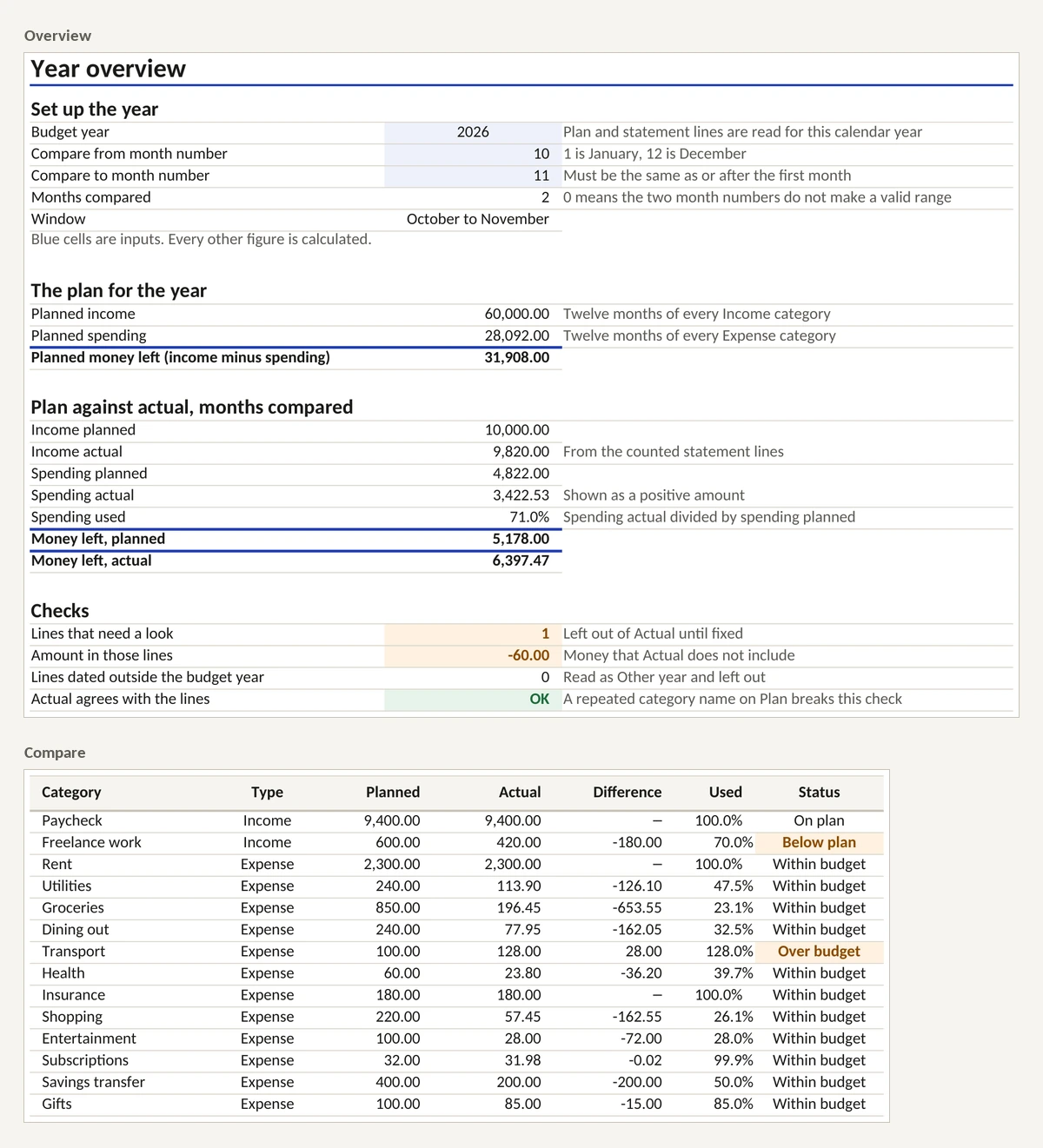
Plan a full year of income and expenses, with a separate amount for each category and month. Add categorized statement transactions to compare your budget with actual results. Monthly inputs let you account for seasonal costs, quarterly bills and one-off expenses.
| Field | Description | Cell type |
|---|---|---|
| Jan to Dec (Plan) | The planned amount for a category in that month | Input |
| Type | Income or Expense for a category | Input |
| Year plan | Total annual budget for the category | Formula |
| Jan to Dec (Actual) | Total eligible transaction amounts for each category and month | Formula |
| Category (Statement Lines) | The plan row a line belongs to | Input |
| Status (Statement Lines) | OK, or the reason a line is left out | Formula |
| Difference | Actual minus planned for the months compared | Formula |
| Used | Actual as a share of planned | Formula |
| Compare from month number | The first month in the comparison | Input |
No. The Actual sheet adds up your statement lines by category and month. With no statement at hand, add one line per category and month and use that month's total as the Amount.
Select only the months you want to assess. For example, comparing October and November excludes later months with no actual data, which could otherwise make spending appear below budget.
Difference is actual minus planned, for income and expenses alike. On an expense, a positive number means you spent more than planned.
The line is dated outside the budget year, so it stays out of Actual. Overview counts such lines. Change the budget year, or copy the file for the new year.
Yes. Every category has its own cell for each month, so quarterly bills and seasonal costs need no workaround.
Its lines would be counted twice. The agreement check on Overview reads Does not add up until you remove the repeat.
License: Free for personal and commercial use. You may edit this template and use it in your own work and business, including for clients. Please don't sell or redistribute the template file itself, on its own or as part of a template pack or collection. Provided "as is", without warranty of any kind; check your own figures. © 2026 PDF to Table — https://pdftotable.app/templates/budget/
Version 1. Last updated November 24, 2026.
Plan monthly income and spending, compare actual results and monitor your remaining budget.
Accepts exported transaction data
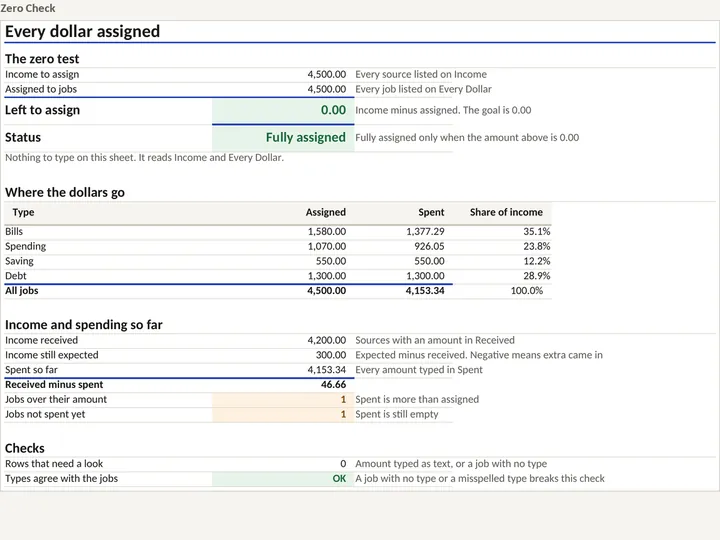
Allocate all expected income, then compare your budget with actual spending, savings and debt payments.
Uses figures from statements
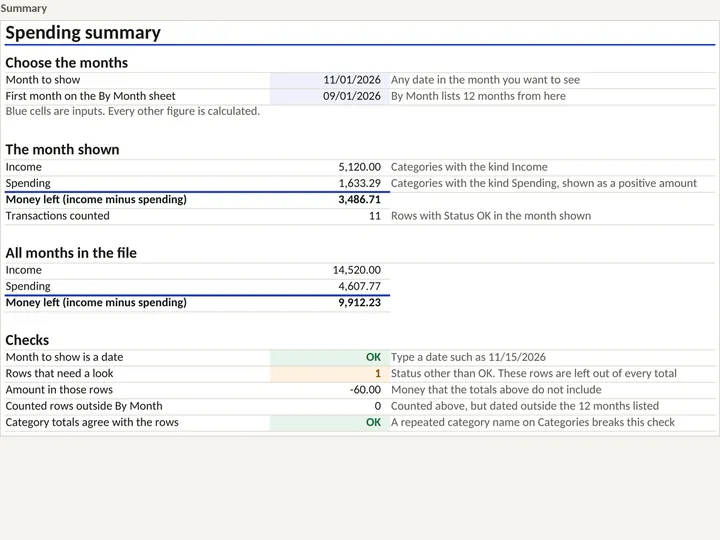
Categorize transactions to track monthly income and expenses.
Accepts exported transaction data
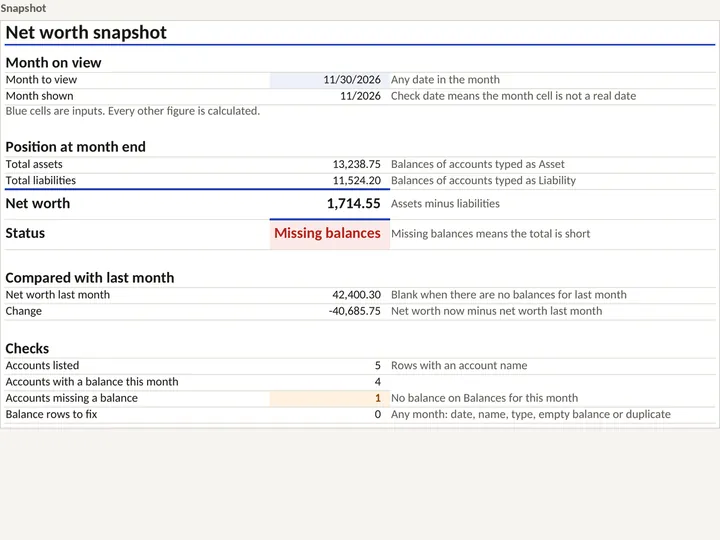
Track assets, liabilities and net worth by month, with alerts for missing account balances.
Uses figures from statements
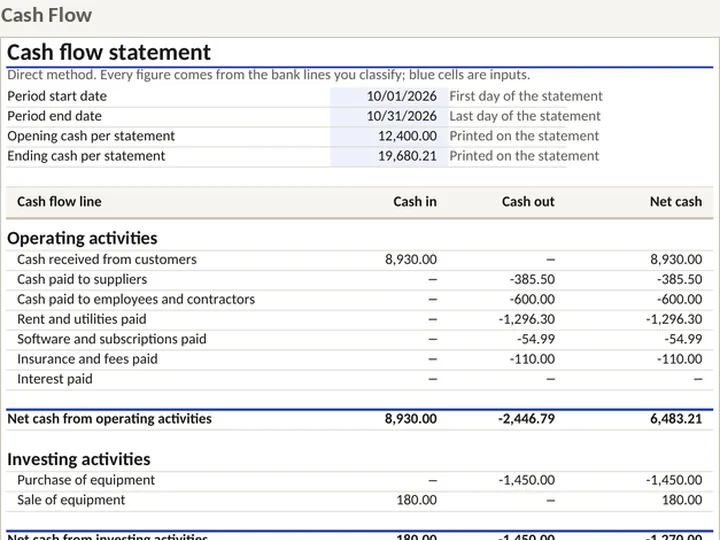
Group cash receipts and payments by activity, then reconcile closing cash with your bank statement.
Accepts exported transaction data