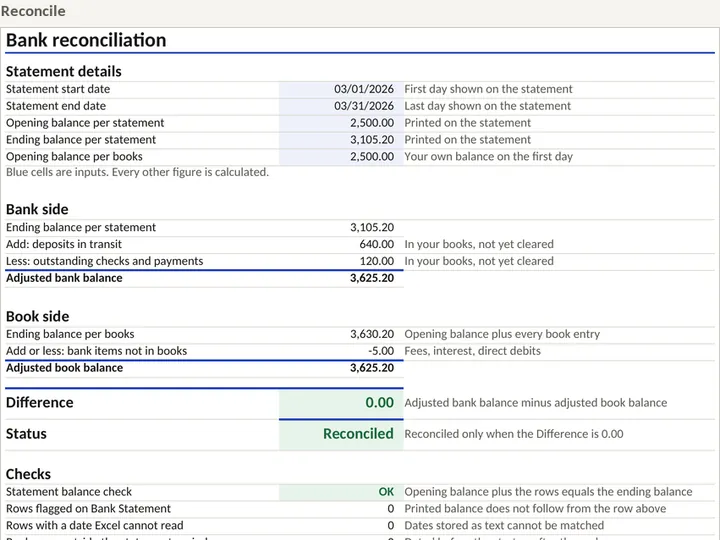
Bank Reconciliation Template
Compare your bank statement with your records and identify outstanding items and discrepancies.
Accepts exported transaction data
Download .xlsx29 KB
Categorize bank transactions to generate journal entries, account balances and a trial balance.
Download complete. Next step: Convert a statement PDF to data you can use in this template
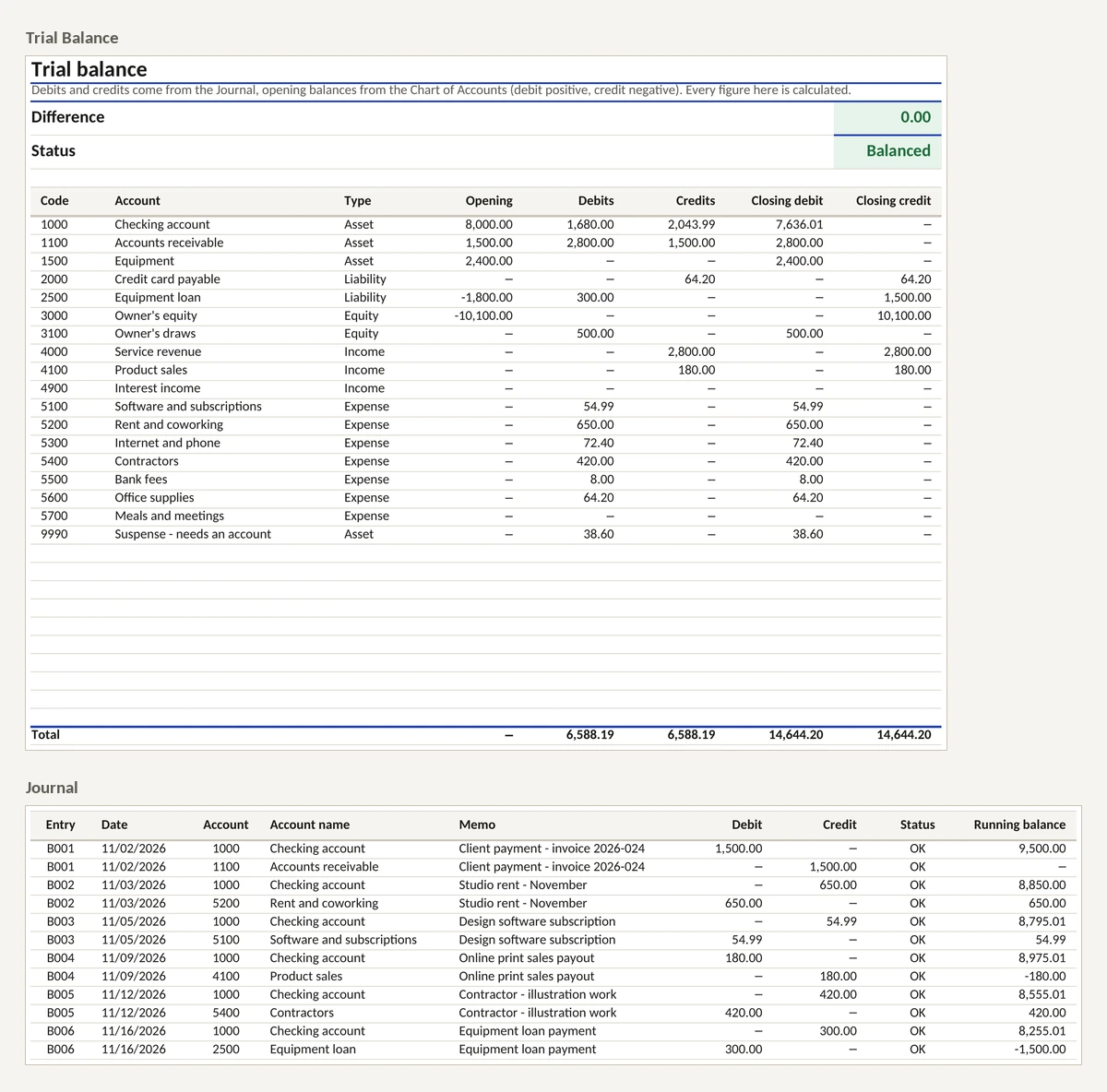
Create double-entry bookkeeping records from bank transactions. Assign a corresponding account to each transaction to generate debit and credit journal entries. Record non-bank transactions on Manual Entries, then review account balances and the trial balance. Designed for sole proprietors and small-business bookkeeping.
| Field | Description | Cell type |
|---|---|---|
| Code, Account, Type | One account in the chart | Input |
| Opening debit, Opening credit | The balance carried in, on its normal side | Input |
| Account (Bank Lines) | Account code for the corresponding side of the bank transaction | Input |
| Debit account, Credit account, Amount | One manual entry | Input |
| Account name, Status | Account name for the selected code and any action needed | Formula |
| Debit, Credit (Journal) | The two sides of each posting | Formula |
| Running balance | The account's balance after that line | Formula |
| Closing debit, Closing credit | An account's balance on its debit or credit side | Formula |
| Difference | Total closing debits minus total closing credits | Formula |
Transactions without an assigned account are temporarily posted to the suspense account. This keeps debits and credits balanced while highlighting entries that still need classification with Needs account.
Start with the checks under it. An account code that is not in the chart, opening balances that do not balance, or a duplicate code are the usual causes, and each has its own line.
Turn on the filter on the Journal table and pick the account. The Running balance column then reads as that account's ledger, with debits positive and credits negative.
A debit to your bank account and a credit to the account you chose, such as income. A payment is the reverse.
The first 100 bank lines, 20 manual entries and 28 accounts. A check counts rows past those limits.
License: Free for personal and commercial use. You may edit this template and use it in your own work and business, including for clients. Please don't sell or redistribute the template file itself, on its own or as part of a template pack or collection. Provided "as is", without warranty of any kind; check your own figures. © 2026 PDF to Table — https://pdftotable.app/templates/general-ledger/
Version 1. Last updated November 24, 2026.
Compare your bank statement with your records and identify outstanding items and discrepancies.
Accepts exported transaction data
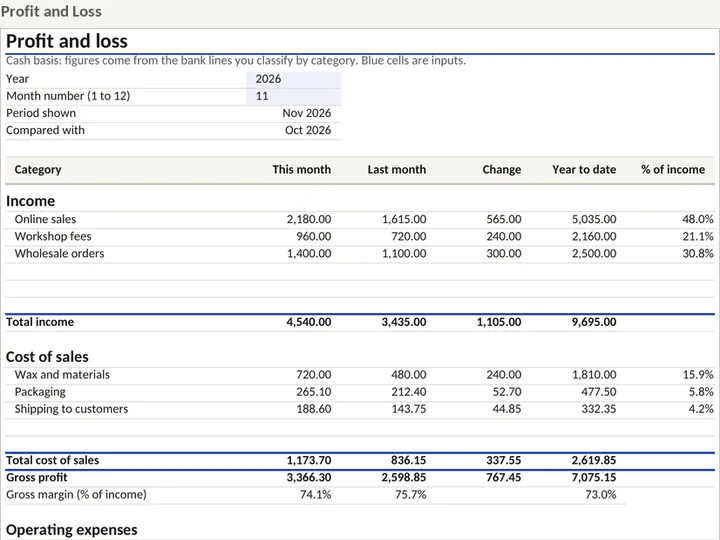
Prepare a monthly cash-basis profit and loss report from categorized bank transactions.
Accepts exported transaction data
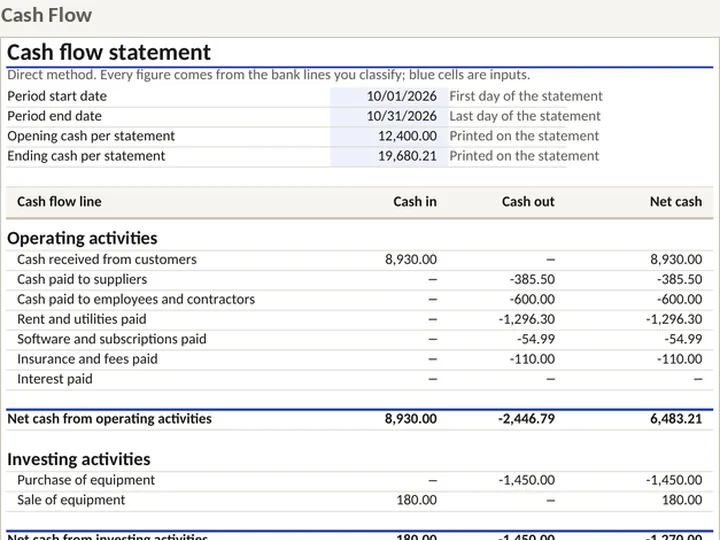
Group cash receipts and payments by activity, then reconcile closing cash with your bank statement.
Accepts exported transaction data
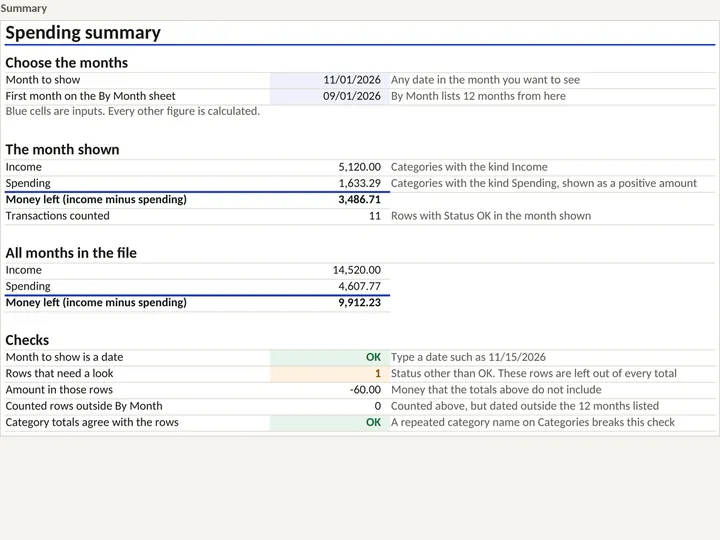
Categorize transactions to track monthly income and expenses.
Accepts exported transaction data
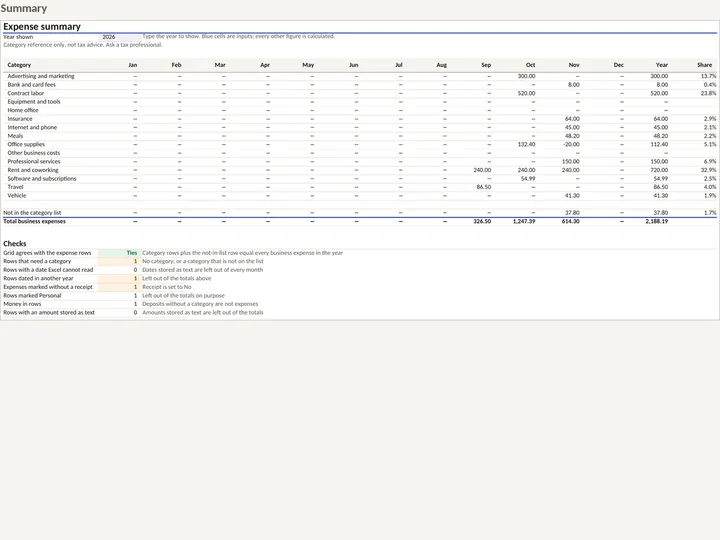
Categorize business expenses and review monthly and annual totals in one table.
Accepts exported transaction data