Expense Tracker Template
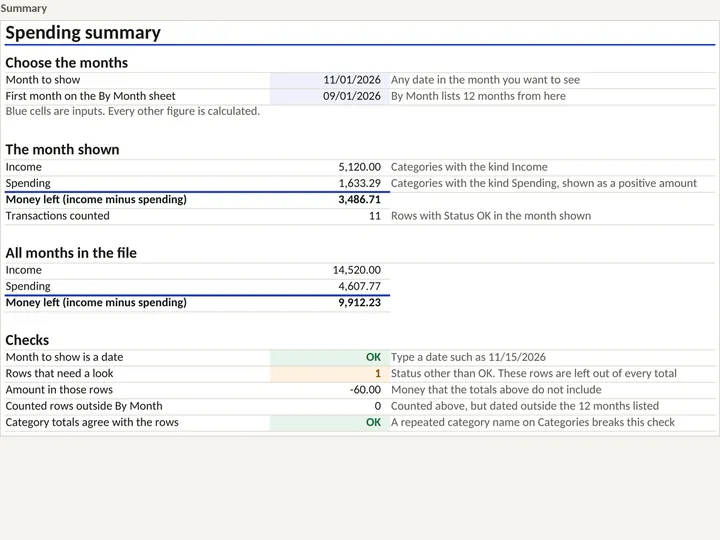
Categorize transactions to track monthly income and expenses.
Accepts exported transaction data
Download .xlsx26 KB
Categorize business expenses and review monthly and annual totals in one table.
Download complete. Next step: Convert a statement PDF to data you can use in this template
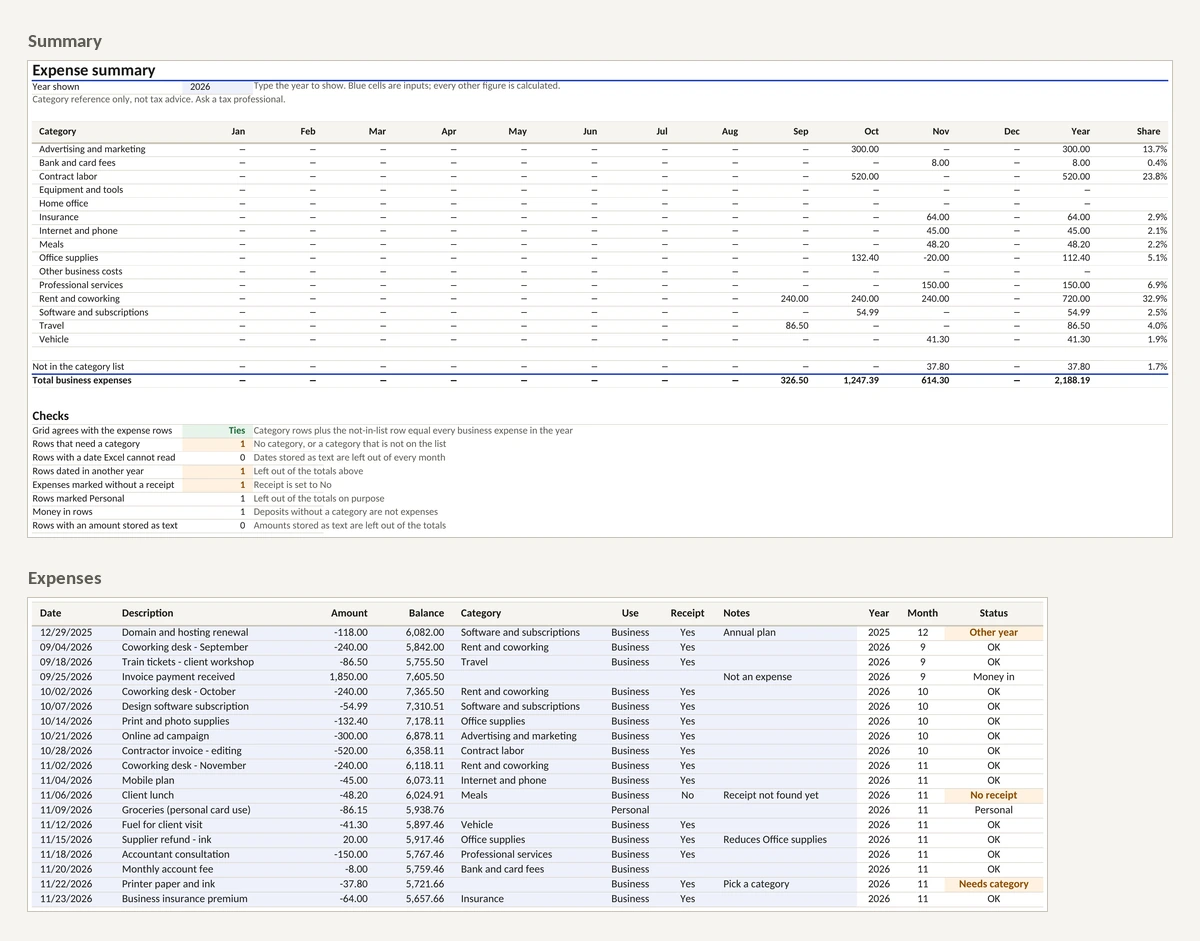
Organize business expenses from bank or credit card statements. Assign categories, distinguish business from personal transactions and record whether receipts are available. Review monthly and annual totals, along with entries that need further attention.
| Field | Description | Cell type |
|---|---|---|
| Date, Description, Amount, Balance | The statement line as exported, money out negative | Input |
| Category | The expense category you choose from the list | Input |
| Use | Business or Personal; personal rows stay out of the totals | Input |
| Receipt | Yes if you hold one, No to flag a missing receipt | Input |
| Year shown | The year the grid covers | Input |
| Year and Month | Read from the date | Formula |
| Status | The first problem with a row, or OK | Formula |
| Category rows by month | Business spending for that category | Formula |
| Not in the category list | Spending that still needs a category | Formula |
No. The categories are a reference list for sorting your spending, and the workbook holds no tax rates, limits or forms. Ask a tax professional how your own expenses are treated.
The date could not be recognized, for example because it was misread or contains placeholder text. The row is counted as an issue but excluded from expense totals until you enter a valid date.
Yes. Set Use to Personal on the personal rows. They stay on the Expenses sheet but never reach Summary. A blank Use counts as business.
Sixteen rows, in the same order as the Categories sheet. Expenses with no category, or with a name that is not on the list, land in a separate row so no spending disappears.
A deposit without a category reads Money in and is ignored. Give a deposit a category, such as a supplier refund, and it lowers that category instead.
License: Free for personal and commercial use. You may edit this template and use it in your own work and business, including for clients. Please don't sell or redistribute the template file itself, on its own or as part of a template pack or collection. Provided "as is", without warranty of any kind; check your own figures. © 2026 PDF to Table — https://pdftotable.app/templates/self-employed-expense-tracker/
Version 1. Last updated November 24, 2026.
Categorize transactions to track monthly income and expenses.
Accepts exported transaction data
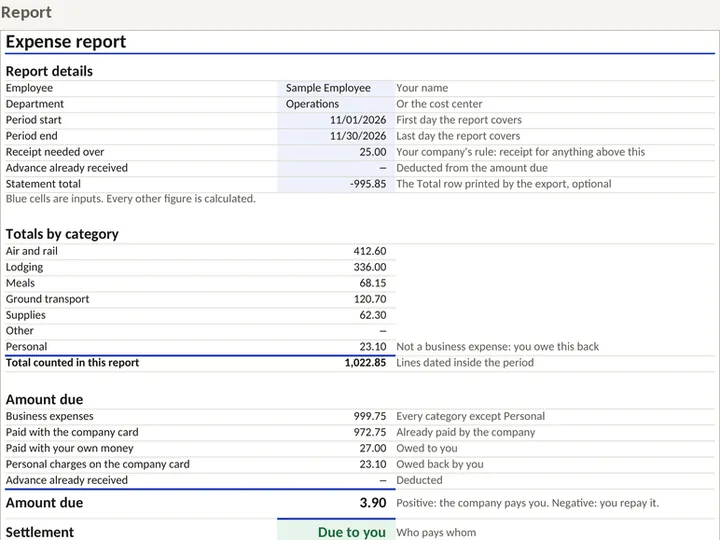
Create an itemized expense report, summarize spending by category and calculate the amount owed.
Accepts exported transaction data
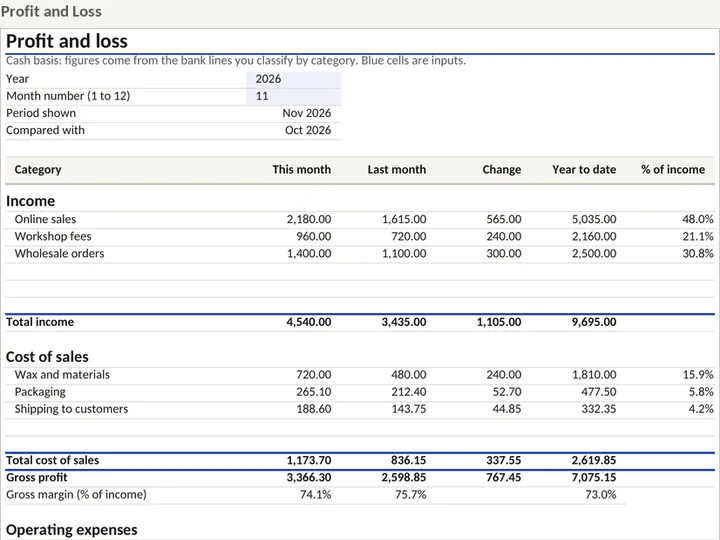
Prepare a monthly cash-basis profit and loss report from categorized bank transactions.
Accepts exported transaction data
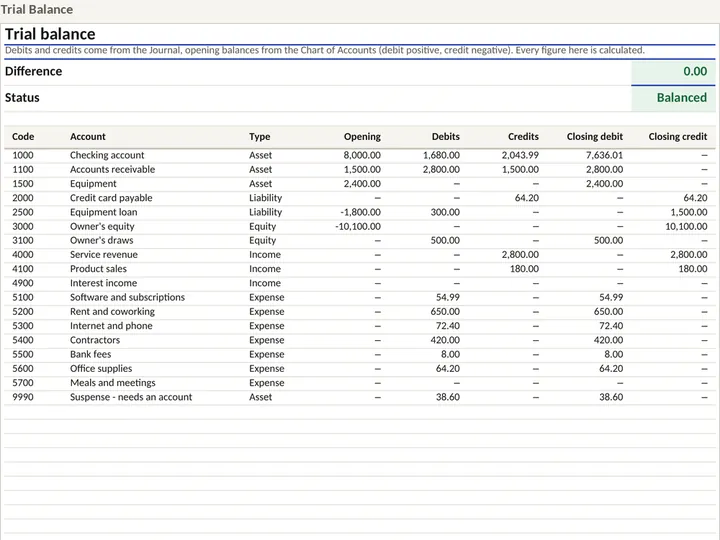
Categorize bank transactions to generate journal entries, account balances and a trial balance.
Accepts exported transaction data
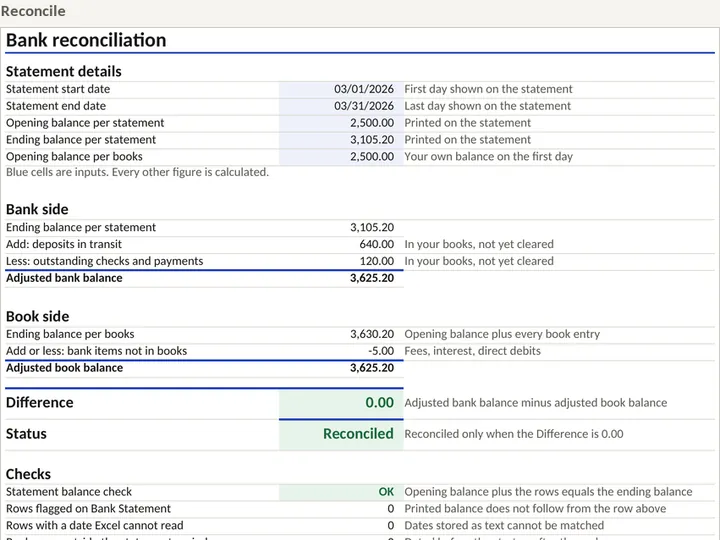
Compare your bank statement with your records and identify outstanding items and discrepancies.
Accepts exported transaction data